The Wait for Argo CD Applications step pauses a deployment until one or more Argo CD applications have either been registered by Argo CD or have synced to the target state and reached a healthy status. Use this step when you need to gate subsequent deployment steps on confirmed application health.
Prerequisites
Before adding this step, ensure:
- Your Argo CD applications have the required Octopus annotations so Octopus can identify which applications belong to which project, environment, and tenant.
- Your Argo CD cluster is connected to Octopus and visible via the Argo CD Applications View.
- Git credentials exist for the repositories referenced by your Argo CD applications, with the repository included in the repository allow list.
Configuration
Expected applications
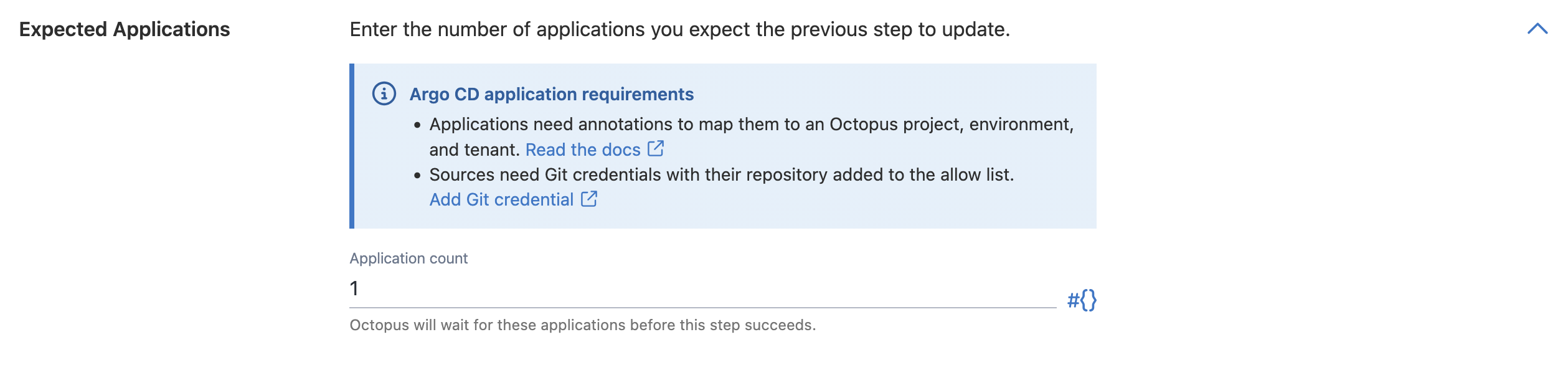
The Application count field specifies how many Argo CD applications Octopus should expect to find and wait for. Octopus discovers matching applications using your project, environment, and tenant annotations.
If fewer applications than expected are found, the step will continue to wait until the expected count is reached or the timeout expires.
You can provide a static integer or an Octopus variable expression.
Each Argo CD application must have Octopus project, environment, and tenant annotations and its Git repository must have credentials configured with the repository in the allow list. See Argo CD application annotations for details.
Label filter
Use the Label filter field to narrow down which applications the step waits for by providing a regular expression matched against application labels. Leave this empty to include all applications that match your project, environment, and tenant scope.
For example, to wait only for applications with a team: payments label, you would enter team: payments.
For a more advanced example, to wait only for applications that match one of the following labels:
...
kind: Application
metadata:
  name: app-1
  labels:
    team: payments
    app.kubernetes.io/part-of: payments-*
---
kind: Application
metadata:
  name: app-2
  labels:
    team: infrastructure
    app.kubernetes.io/part-of: payments-*
...
You could use the following regex to match on both apps
(team: payments|team: infrastructure|app\.kubernetes\.io\/part-of: payments-.*)
Commit hashes
The Commit hashes field allows you to wait for applications that have synced to one or more specific Git commits. Provide each commit SHA as 7 to 40 hexadecimal characters, separating multiple hashes with commas.
When specified, Octopus only considers an application as “ready” once it has synced to one of the provided commits. This is useful when you want to verify that a known set of changes has been applied, rather than simply that the application is healthy at its current state.
Leave this field empty if you want to wait for health regardless of which commit the applications are running.

Additional configuration options
Step verification
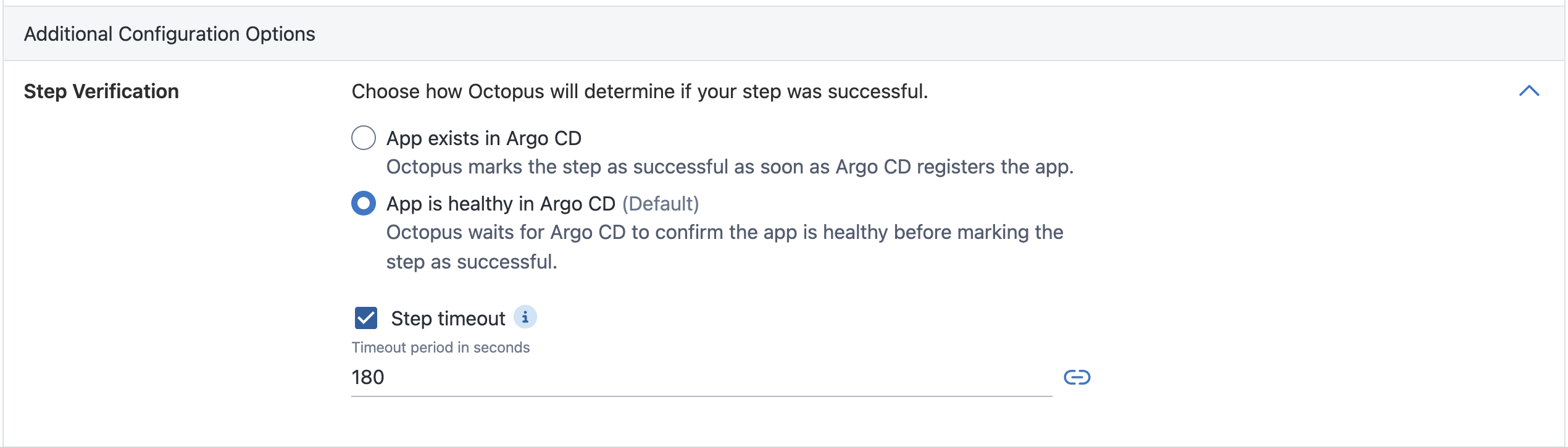
The Step Verification option determines how Octopus decides whether the step has succeeded. Choose one of the following options:
- App exists in Argo CD — Octopus marks the step as successful as soon as Argo CD registers the matching applications. Use this when you only need confirmation that Argo CD knows about the applications, without waiting for them to fully reconcile.
- App is healthy in Argo CD (default) — Octopus waits until Argo CD reports that the matching applications are both Synced and Healthy before marking the step as successful. If commit hashes are configured, Octopus also verifies the applications are synced to one of those commits.
By default, the step will wait up to 180 seconds for the verification condition to be satisfied. The timeout is the maximum amount of time Octopus will wait for the expected Argo CD applications to be discovered (and, for the “App is healthy in Argo CD” verification method, to reach a healthy and synced state).
If the timeout is exceeded, the step fails and the deployment is marked as failed. Increase the timeout if your applications have longer sync times due to large manifests, slow container pulls, or lengthy readiness probes.
You can disable the timeout entirely by unchecking the Step timeout option, though this is not recommended for production deployments as it may cause the deployment to hang indefinitely.
How the step works
When the step executes during a deployment, Octopus:
- Creates an interruption point that pauses step execution.
- Polls the Octopus Deploy database for the current state of the applications that are scoped to the in-progress deployment.
- Applies the label filter (if configured) to narrow the discovered applications.
- Validates that the discovered application sources target revisions can reach the specified commit hashes(if configured).
- Depending on the Step Verification option:
- App exists in Argo CD — resumes once the expected applications have been registered in Argo CD.
- App is healthy in Argo CD — checks that each discovered application is reported as Synced and Healthy in Argo CD.
- Checks that the number of discovered applications matches the expected count.
- Resumes the deployment once all conditions are satisfied, or fails if the timeout is exceeded.
Output Variables
After the step completes, Octopus sets the following output variable:
| Variable | Description |
|---|---|
ArgoCD.VerifyArgoApplicationSyncResult | The outcome of the verification. Possible values are listed below. |
Outcome values
| Value | Description |
|---|---|
Synced | All applications were verified to meet the configured criteria within the timeout period. |
Timeout | The applications did not satisfy the configured criteria before the timeout expired. |
Failed | A fatal error occurred during verification. |
Failure scenarios
Timeout
If the configured verification condition has not been met within the configured timeout, the step fails with outcome Timeout. Common causes include:
- The application has a long sync or rollout duration (increase the timeout).
- Argo CD is in a degraded state.
- A misconfigured manifest is preventing the application from becoming healthy.
Troubleshooting
The step can’t find my applications. Verify that your Argo CD applications have the correct project, environment, and tenant annotations. You can inspect discovered applications via the Argo CD Applications View.
The step times out even though the application appears healthy in Argo CD. Check that the Application count matches the actual number of applications Octopus should discover. If you have a label filter set, confirm it matches the labels on your applications. If you have provided commit hashes, confirm that the applications have synced to one of those commits. Also verify the application’s Argo CD status is both Synced and Healthy (not just one of the two).
Help us continuously improve
Please let us know if you have any feedback about this page.
Page updated on Monday, May 18, 2026